 smartcod
SMART COD PRO · Included in every PRO plan
Hide Cash on Delivery when it does not fit.
Combine checkout conditions to decide when COD is available. Other payment methods remain available.
How it works
Decide when Cash on Delivery belongs at checkout.
A single global switch cannot describe every order. You may offer COD near your store but require online payment further away, for a shipment that would be costly to return or for a high-value purchase. Define those cases with separate rules and the same condition editor used throughout PRO.
Every condition inside a rule must match together. For example, combine a list of delivery postcodes with a minimum cart weight to restrict only heavy orders to those destinations. A light order to the same postcode would not match that combination. Use separate rules for alternative cases. Only the first matching restriction rule is used.
Your checkout, your rules
Combine order, shipping and customer conditions.
Target shipping zones and individual shipping methods, countries, postcodes or cities. Combine them with products, categories, SKUs, cart value, weight, quantity, customer status or role, coupons and supported marketplace or invoice fields. You are not limited to the few examples shown here.
Combine country and region to keep COD within your local service area. Use cart weight to distinguish heavy shipments, or product and category conditions for goods that need different handling. These are examples; any of the available conditions can be used on its own or in combination.
Explore every available condition →Practical example
Example: when this shop requires full online payment
A home-and-garden shop sells small accessories, tools and furniture. It accepts COD in its local area and sets limits for heavy or high-value orders. These three rules describe its policy.
| When this happens | Your chosen result |
|---|---|
| 1. Delivery postcode is in the store’s remote-destination list | Hide COD for the remote destinations where the shop wants to avoid a costly return. The merchant lists the relevant postcodes and requests online payment for those orders. |
| 2. Total cart weight ≥ 20 kg | Hide COD for heavy shipments where a return would be costly. A 22 kg order matches; an 8 kg order does not. |
| 3. Product subtotal ≥ €500 | Hide COD for a high-value order: a €520 product subtotal matches even if the shipment is light and stays within the shop’s local area. |
When one of these rules matches, COD is hidden. The customer can choose another available payment method.
What the customer experiences
When a rule matches, Cash on Delivery is removed from the available payment choices. The customer can continue with the other payment methods available for that checkout. When the customer changes the cart or delivery details, the conditions are evaluated for the updated checkout.
Settings & setup
Set it up in your store
Open WooCommerce → Smart COD PRO and create your hiding rules. Select the conditions, review the rule preview, put the rules in the desired order and save. Test both a matching cart and a non-matching cart. The decision audit helps explain which rule actually applied.
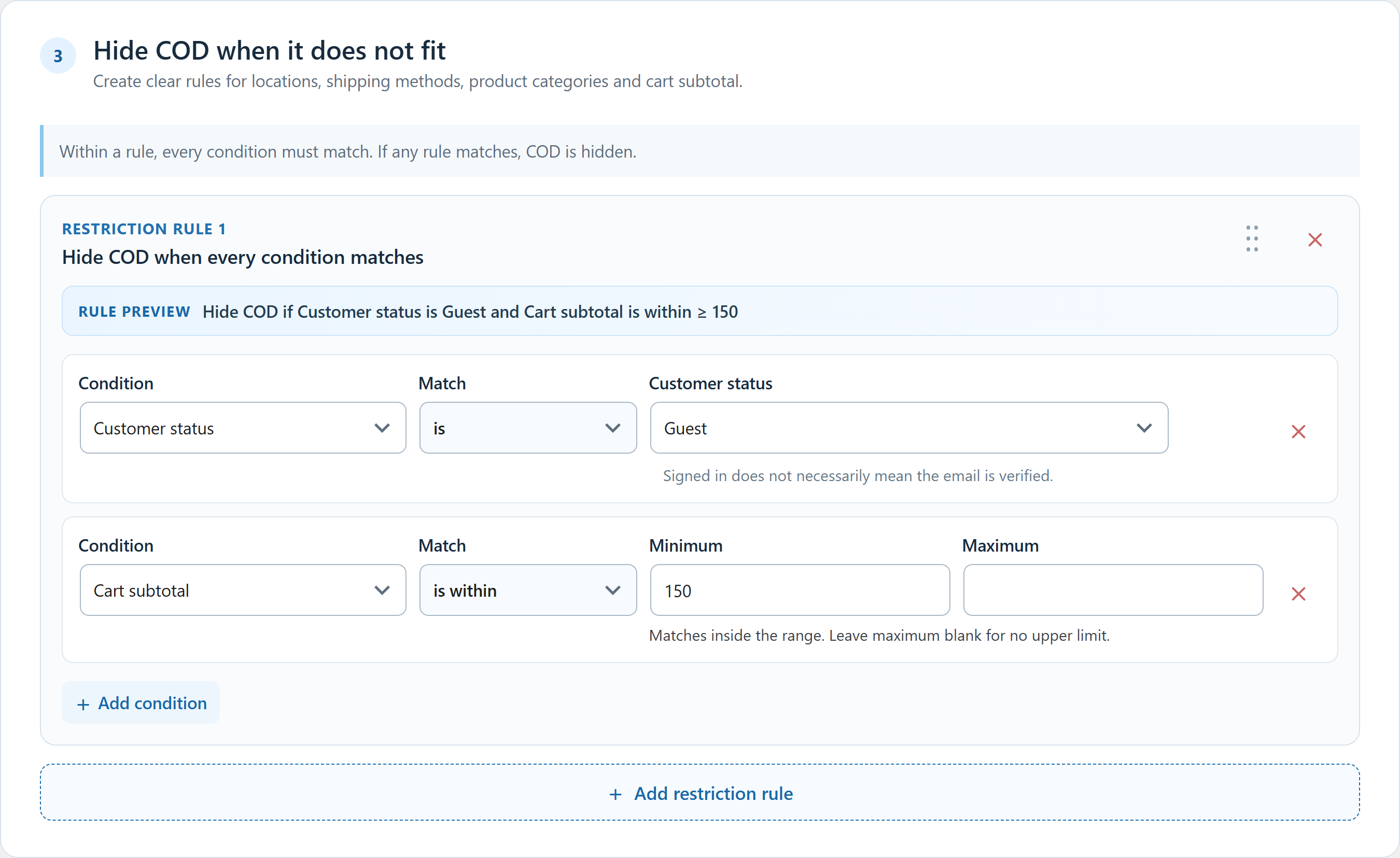 Click to enlarge the actual plugin screen
Questions about this feature
Do I need the network to use these rules?
No. Hiding rules based on checkout conditions work independently of delivery-history protection and ML.
Does a registered customer automatically get restricted?
No. Registration by itself is not a negative history signal. Account status affects a checkout rule only when you explicitly include that condition.
All available conditions
Choose which orders match each hide-COD rule, using any available condition or combination of conditions.
Select a condition for its explanation.
Destination & shipping
Delivery country
Select the shipping destination countries. Billing country is used only when no shipping country exists. This works for every supported WooCommerce country.
Shipping method
Choose a shipping method configured in your WooCommerce store, such as “Flat rate” or “DHL Express”. Two instances of the same method can be different choices. A cart without a selected shipping method does not match this condition.
Shipping zone
Matches the destination zone selected by WooCommerce, including Rest of the world. It follows your store’s zone configuration, not a hard-coded country list.
Shipping zone and method
Select a method within a specific zone, such as “Cyprus zone + Flat rate” or “Cyprus zone + DHL Express”. The same method in another zone will not trigger this rule.
Delivery state / region
Choose the region together with its country. Regions with similar codes in different countries are distinct. An unavailable region does not count as a match or an exclusion.
Delivery postcode
Enter exact postcodes, one per line. Leading zeros are preserved. Numeric intervals such as 55133...55600 include both ends; for alphanumeric postcodes use exact values, without wildcards.
Delivery city
Enter city names one per line, in the spelling customers use. Matching ignores letter case across countries and scripts. Málaga differs from Malaga; it is not a fuzzy search or transliteration.
Customer & account
Customer type
Distinguishes guest customers from customers currently signed in to WordPress. Entering an email that belongs to an account does not make a guest signed in.
Customer role
Select WordPress roles, for example Customer or Wholesale customer, or Guest. A signed-in user may have multiple roles; matching one selected role is sufficient.
Customer account
Select specific WordPress customer accounts. This identifies the signed-in account, not every shopper with the same billing email. A guest has no customer account.
Customer email
Enter complete billing email addresses, one per line. Matching trims surrounding spaces and compares the exact value; it does not match domains, substrings or email aliases automatically.
Customer phone
Enter complete billing phone values, one per line. Surrounding spaces are trimmed. +306900000001 and 6900000001 are different values; add the forms you intend to match.
Products & marketplace vendors
Product or variation
Select products or specific variations. A selected parent product includes its variations; selecting one variation matches only that variation. Use the Match selector for any or every cart line.
Product category
Matches the product’s assigned categories. Variations use their parent product’s categories. Choose whether any, none or every cart line must match the selected categories.
Shipping class
Matches the product’s shipping class, including a variation’s inherited class. A product without that class does not match it. Every-item matching checks all cart lines.
Product SKU
Enter exact SKUs, one per line. A variation can match its own SKU or the parent SKU. Use any/every-item matching to distinguish a mixed cart from one consisting entirely of matching lines.
WCFM vendor
Select vendor accounts for products assigned through WCFM. Requires the relevant marketplace integration to provide vendor data. Missing vendor data does not mean the cart has no selected vendor.
Dokan vendor
Select vendor accounts associated with products in Dokan. Variations follow the parent product’s vendor. Use any, every or selected-value matching according to whether mixed-vendor carts should qualify.
Amounts, quantities, weight & stock
Cart subtotal
The product amount after coupon discounts, excluding tax, shipping and fees. A minimum of 150 includes exactly €150 in an EUR store. This is not the final amount payable.
Total cart quantity
Adds the quantities of all cart lines. Two units of one product and one of another give quantity 3, even though the cart has only two lines.
Total cart weight
Adds physical product weight multiplied by quantity, in your store’s weight unit. A physical item with unknown weight makes the total unavailable; virtual products contribute no shipping weight.
Each product weight
Checks each cart line’s product weight without multiplying by quantity. Use “is within” when every product must be inside the range, or “is not within” when a measured product lies outside it.
Each product stock quantity
Checks measured stock for each product, using parent stock when the parent manages a variation. Cart quantity does not multiply this number. Zero and negative stock are valid; unmanaged stock is unknown.
Cart amount before tax and shipping
Discounted product amount without tax, shipping or fees. Example: €100 of products after discounts gives 100. Coupon discounts change this amount.
Cart amount including tax
Discounted products plus product tax, excluding shipping and fees. Example: €100 of products with €24 product tax gives 124, regardless of shipping charges.
Cart amount including shipping
Discounted products plus shipping before tax. Example: €100 of products and €5 net shipping gives 105. Product tax, shipping tax and fees are excluded.
Cart amount including tax and shipping
Discounted products, product tax, shipping and shipping tax, excluding fees. Example: €100 + €24 product tax + €5 shipping + €1.20 shipping tax gives 130.20.
Coupons, invoices & backorders
Applied coupon
Enter coupon codes, one per line. Matching follows WooCommerce’s coupon formatting. For selected codes A and B, a cart with only A satisfies “all applied values are selected”; A and C does not.
Invoice requested
Checks the supported invoice selector: billing_invoice in Classic or the registered webexpert/billing_invoice field in Blocks. An explicit invoice request means Yes; without one it is No. Entering a company name alone does not count as an invoice request.
Cart contains a backorder
Yes means at least one cart line is actually on backorder for the requested quantity. Merely allowing backorders in product settings is not enough. One confirmed backorder establishes Yes.