 smartcod
SMART COD PRO · Included in every PRO plan
Different COD fees for different orders.
Choose a different COD fee for each situation: a fixed amount or percentage for everyone, or different prices based on your chosen conditions.
How it works
Different shipping zone or method? Different COD fee.
Suppose your WooCommerce store has two shipping zones: Greece and Cyprus. You want a €2 COD fee for Greece and €5 for Cyprus. In the Cyprus zone, you also offer an “Express Courier” shipping method with an €8 COD fee. Create three rules, each with its own amount and conditions. These example amounts are COD fees, separate from shipping charges.
Rules are checked from top to bottom, and only the first match applies. For this example, put “Cyprus zone + Express Courier → €8” first, then “Cyprus zone → €5”, then “Greece zone → €2”. A Cyprus order using Express Courier therefore has an €8 COD fee, not €5 + €8. If no rule matches, this list adds no fee. To charge a general fee in other situations, add an unconditional rule at the end.
Your checkout, your rules
Multiple prices, with fixed amounts or percentages.
Choose a fixed amount or percentage for each rule. Percentage fees are calculated on the cart subtotal, rather than the final order total. For example, 2% of a €100 subtotal is €2 before any tax applied to the fee. Set a checkout label that makes the charge understandable.
You are not limited to shipping zones and methods. Each fee rule can use any available condition on its own or in combination, including products, categories, cart value and customer details. All conditions within a rule must match together. An unconditional rule applies to every COD order that reaches it. Taxable fees follow WooCommerce’s tax handling and your store settings.
Explore every available condition →In practice
Example scenarios
Illustrative rules and amounts. You choose the values that fit your store.
| When this happens | Your chosen result |
|---|---|
| Cyprus shipping zone + Express Courier method | €8 COD fee. Put this specific rule first so it takes priority over the general Cyprus rule. |
| Cyprus shipping zone + any other shipping method | €5 COD fee. The next rule for the Cyprus zone applies. |
| Greece shipping zone | €2 COD fee. The rule for the Greece zone applies. |
What the customer experiences
Customers choosing Cash on Delivery see the applicable COD fee as a separate line in checkout totals. In this example, delivery in Greece means €2. In Cyprus, they see €5 with other shipping methods or €8 when they choose Express Courier. The fee and total update when the shipping choice changes. Choosing another payment method removes the COD fee.
Settings & setup
Set it up in your store
Enable COD fees and add the three rules in the example order. For the first rule, select Express Courier within the Cyprus shipping zone so it targets that exact combination. Set each rule’s calculation, amount, checkout label and taxable setting. Save and test Greece, Cyprus with another shipping method, and Cyprus with Express Courier: the COD fees should be €2, €5 and €8 respectively.
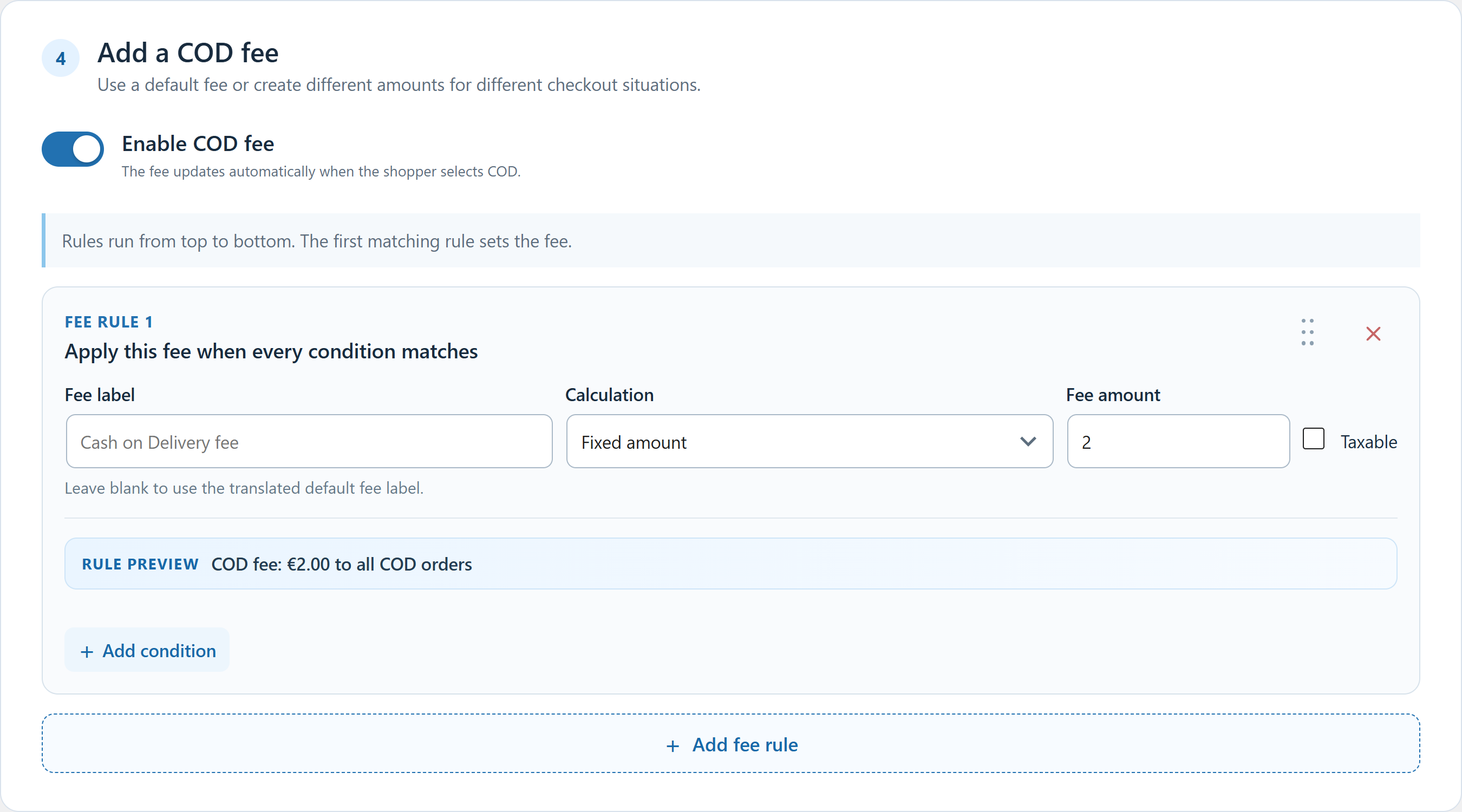 Click to enlarge the actual plugin screen
Questions about this feature
Can I charge different prices rather than just one?
Yes. For example, €2 in the Greece zone, €5 in the Cyprus zone, and €8 only for Express Courier in the Cyprus zone. Put the specific €8 rule before the general Cyprus rule. Only the first matching fee applies; fees are not added together.
Can fees use the same conditions as hiding and deposits?
Yes. Each fee rule can use any available condition and combine them, just like hiding COD and deposits. Fee rules have their own list and priority order.